Console controls
The Network tab has a list of the captured requests on the left, and the selected request on the right. This page explains the controls above the list and above the request. Pause and Overwrite change what Lustro records, and the throttle changes the app's traffic. The three settings are in the app's memory: they apply to every console and every CLI client, and the app forgets them when its process ends.
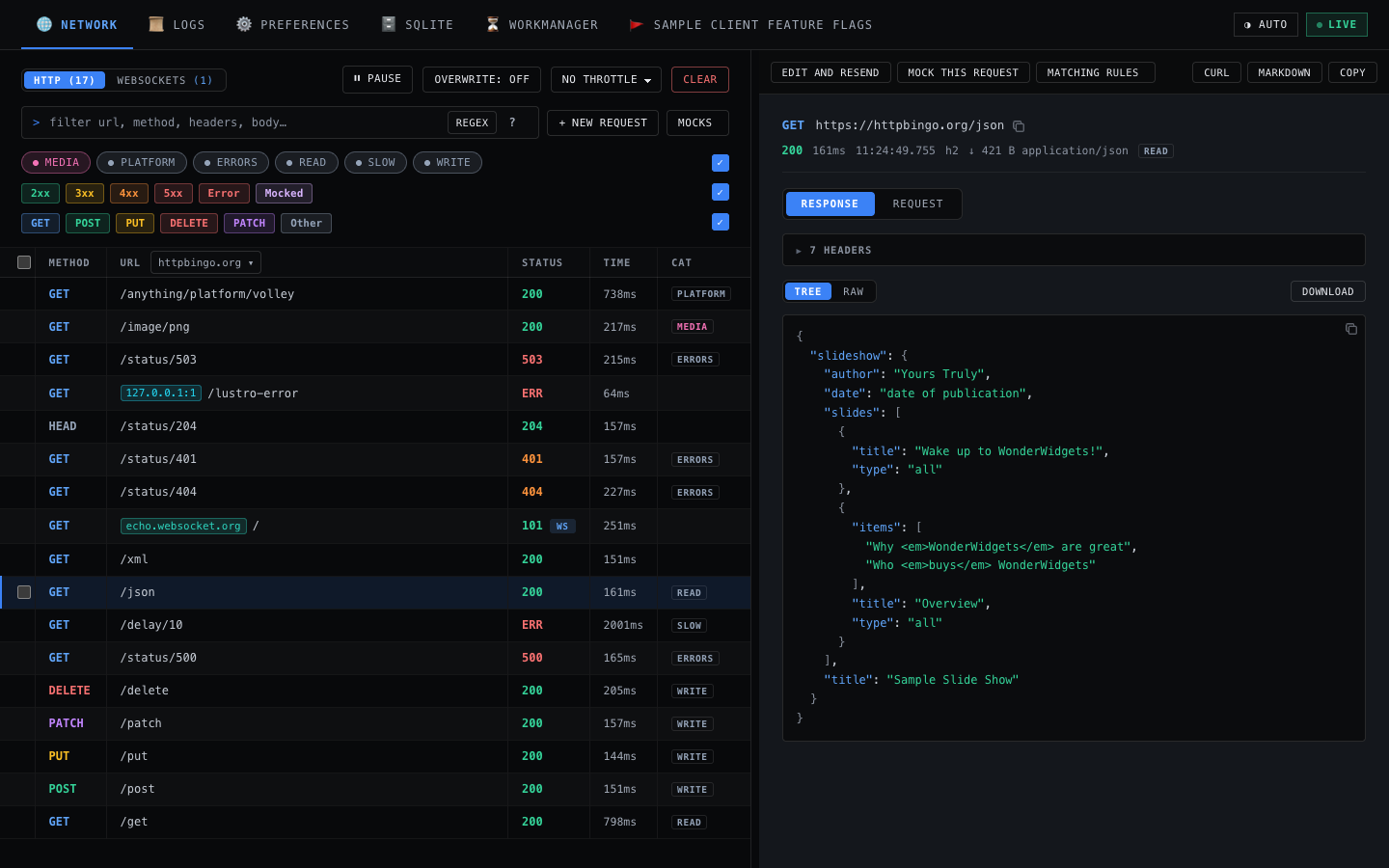
The toolbar
| Control | What it does | CLI |
|---|---|---|
| HTTP / WebSockets | Shows the HTTP requests, or the WebSocket connections and their messages. The number is how many each list has. See WebSocket messages. | lustro net list, lustro net ws list |
| ⚠ | Shows when the app's capture filter left out a request: see OkHttp capture setup. | lustro net state |
| ⏸ Pause | Stops the recording of new requests and WebSocket messages, and changes to ▶ Resume. The interceptor still runs: mock rules and the throttle still apply. | lustro net pause |
| Overwrite | When on, a new request removes the earlier finished requests with the same method and URL path, so the list keeps one row for each endpoint. A request that is still in flight stays. The new row says how many rows it replaced. | lustro net overwrite |
| Throttle | Holds each OkHttp request for the time that you select, from 500 ms to 1 min, before it goes out or before a mock rule answers or fails it. | lustro net throttle <ms>, at most 600000 (10 min) |
| Clear | Removes the captured requests and WebSocket connections, and starts the capture filter's counts again. The mock rules and the settings stay. Shortcut: C. | lustro net clear |
Use the throttle to see a loading state, to test a timeout, or to find a race between two
requests. Select a delay, then do the action in the app. A held request is in the list while it
waits, and its detail shows how long the throttle held it (throttledMs in the API). Select
No throttle to stop. The
throttle holds only the requests of the OkHttp interceptor: a platform HttpURLConnection
request, and a request that an adapter of your own reports, go out at once.
Search
The search field finds a text in the URL, the method, the headers, and the bodies of each request, ignoring case. The app runs the search on the device, 300 ms after you stop typing, and the detail marks each match.
- Regex makes each word a Java regular expression that ignores case. All the words must
match, each in any field, and a word that starts with
-leaves out the requests that it matches. For example,featured|popular -analyticsfinds the requests withfeaturedorpopular, but withoutanalytics. A regular expression that does not compile shows an error under the field. The console remembers this setting in your browser. - ? shows common regular expressions, with examples.
- Ctrl+K (Cmd+K on macOS) puts the cursor in the field, and Escape clears it.
From the CLI, lustro net list --search <text>, with --regex for regular expressions, gives the
same result: see
Agents and automation.
Filters
Three rows of buttons under the search field hide rows of the list. The console remembers them in your browser.
- Categories. One button for each label that the app's
NetworkClassifiergave.Sync,Auth,Media,Config,AI, andWiretapcome first, in this order, and the other labels after them, in the order the console first saw them. A row shows when one of its labels is on. A row without a label always shows. See Redaction and categories. - Statuses.
2xx,3xx,4xx,5xx,Errorfor a request that failed without a response, andMockedfor a request that a mock rule answered or failed. - Methods.
GET,POST,PUT,DELETE,PATCH, andOther.
The list
Each row has the method, the path of the URL without its query, the status, the time, and the categories. Point at the path to see the whole URL, and click a row to show the request on the right.
The checkbox of a row selects it. Shift-click selects the rows between two checkboxes, and the checkbox in the header selects every row that the filters show. With a selection, a bar shows:
- Copy Markdown copies the selected requests and their responses as one Markdown document.
- Export HAR saves them as a HAR file. See Export.
- Clear selection deselects every row.
Hosts
A row on one of the app's hosts shows only the path. A row on any other host, such as the
server of an analytics or a maps SDK, starts with a tag of its host: /api/v1/events of an SDK
then does not look like a request to the app's own server. The same host always has the same
color. A long host is cut on the left, so the end of the domain stays in view.
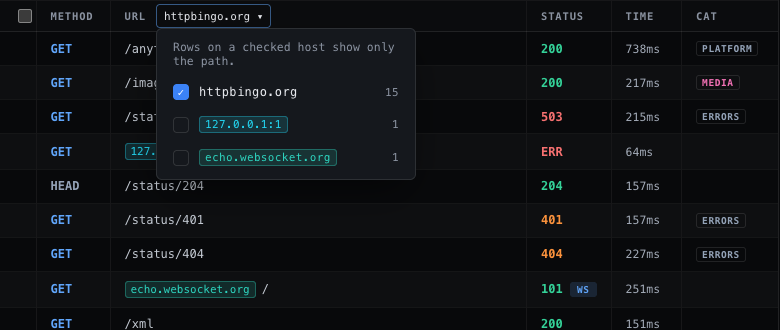
The button in the header of the URL column names the app's hosts, for example
api.example.com, or api.example.com +1 for two. They are the hosts of the base URLs of the
senders, so most apps need no setting. Click the button to choose others: the
menu lists each host in the list with its number of rows, and a checked host shows only the path.
The console remembers your choice in your browser, for each app, so two apps that you reach on
the same port keep their own hosts. Use the senders' hosts forgets it. When
no sender has a base URL, the button says no app host, and every row has a tag until you check
a host.
The CLI and the API always give the whole URL, so they need no such setting: lustro net list
prints it on each row, and --url <host> finds the requests to a host.
The selected request
The bar above the request has these buttons:
| Button | What it does |
|---|---|
| Edit and resend | Opens the request in the Send form, where you change it and send it again. It shows when the app gave Lustro a sender. See Send Request. |
| Mock this request | Opens a mock rule for this method and URL, with the captured response, or with the failure of the rule that failed the request. See Mock rules. |
| Matching rules | Lists the mock rules that match this request, enabled or not, in the order the app tries them. |
| cURL | Copies a curl command that sends the same request. |
| Markdown | Copies the request and the response as Markdown, for a bug report or a pull request. |
| Copy | Copies the status, the headers, and the bodies as plain text. |
Each body has the views that its type permits: Tree for JSON, Pretty for markup such as XML or HTML, Table for a form, Parts for a multipart body, Preview for an image, and Raw for the body as it is stored, with line numbers, or as a hex dump for a binary body. The console remembers the view that you select for each content type.